Scheduling
Online leagues require players to schedule games in advance.
How do I schedule a game?
Sign-in to Leago and navigate to the “You” tab.
Here you will see a list of your matches that need to be scheduled.
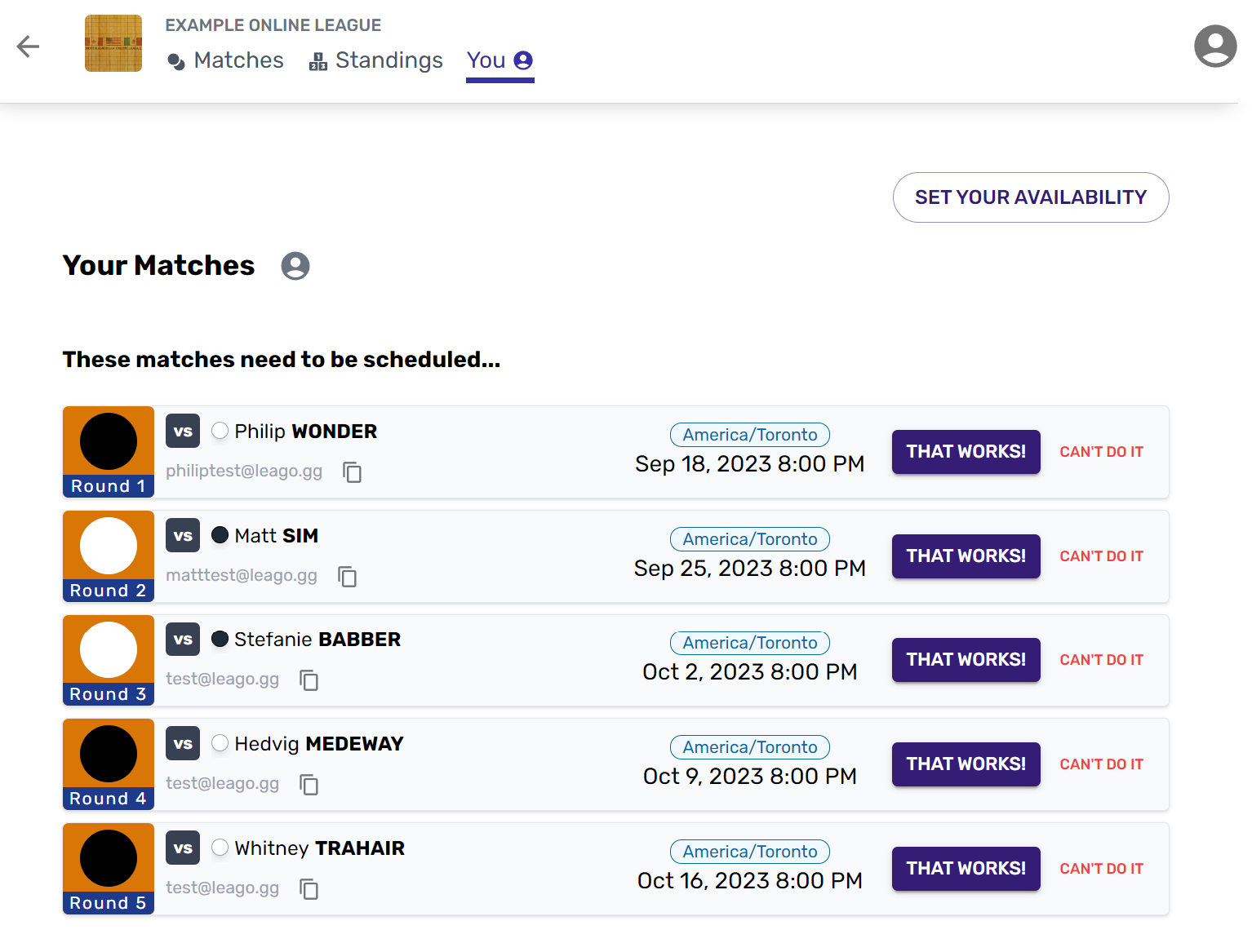
Games will usually start with a default suggested time.
If a time has been suggested you can agree to it by clicking "That Works!"

Alternatively, if you can't play at the suggested time, click "Can't Do It" and suggest a new time by clicking "Schedule".

The Scheduling Dialog
Clicking "Schedule" will open the Scheduling Dialog.
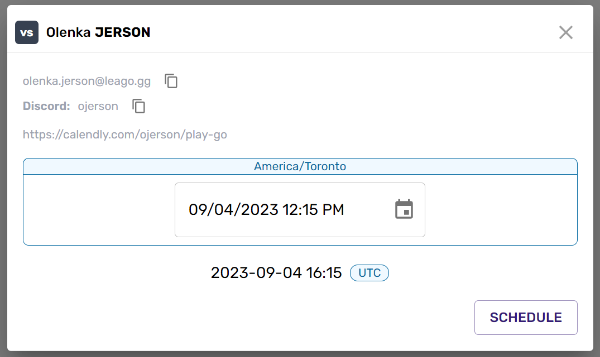
A game is scheduled once both players have agreed to a time. If you’ve confirmed a time but your opponent hasn’t you will need to wait for your opponent to confirm.

Setting Availability
Your opponent may have set their typical availability to help you find a good time to play.
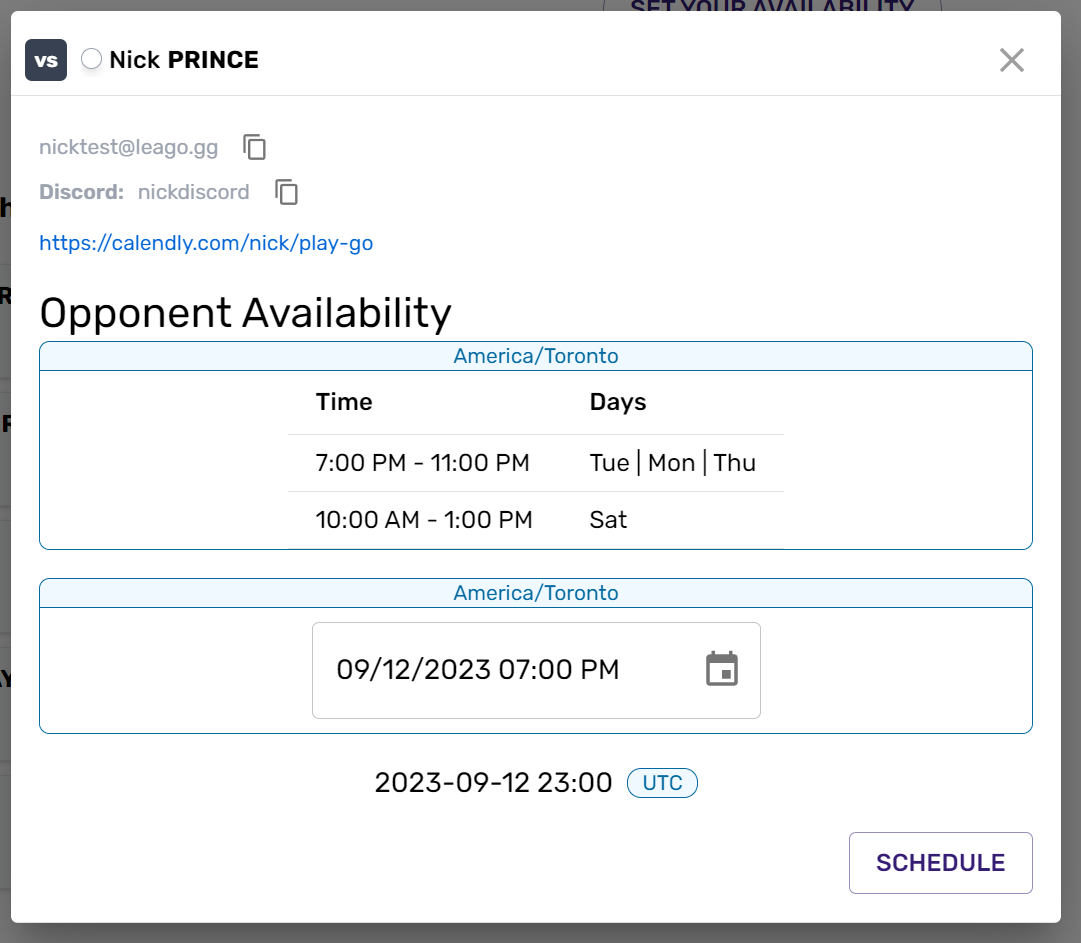
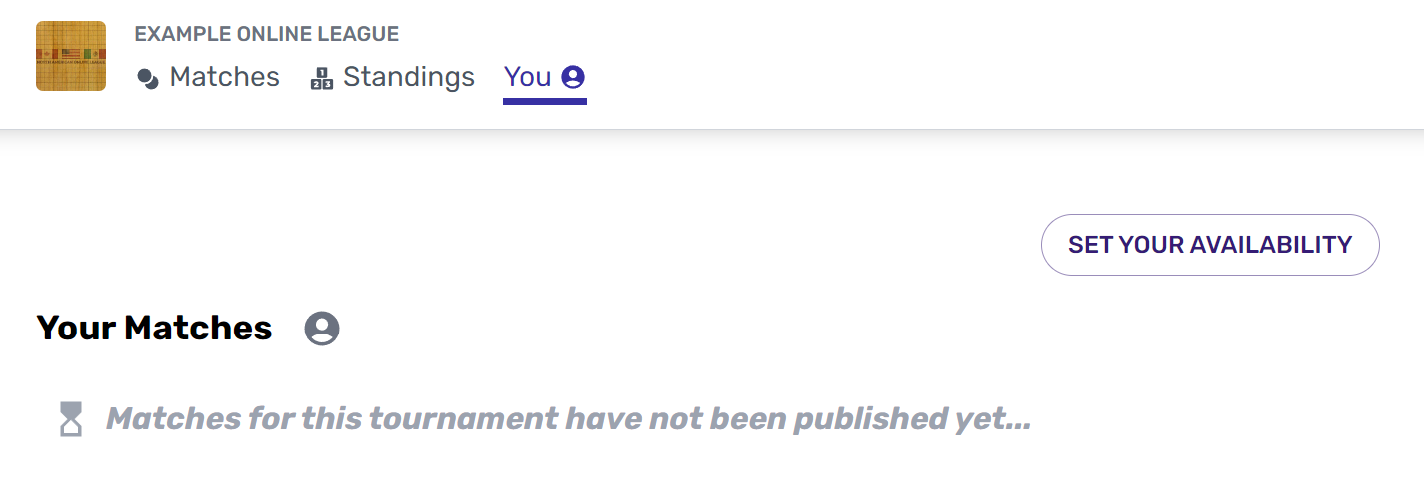
You can set your general availability by clicking "Set Your Availability" from the You Page.
Note: The actual match time is saved in UTC, but you should set the time in your own timezone.
For more information about setting your availability, see Setting Availability
Playing the game
Once both players confirmed the "Let's Play" button will activate. At the agreed time, click the button to start the match.
The match won't begin until both players have clicked "Let's Play".
